Over the weekend, we decided to take the plunge and upgrade the SSW TFS 2010 instance to the shiny new TFS 2012 release candidate.
Update: for the latest rules for migration, see http://rules.ssw.com.au/TFS/RulesToBetterTFS2012Migration/Pages/default.aspx
From Adam Cogan's Blog:
Initially, there was some debate as to whether we should upgrade what is the busiest server in our environment. One call to Grant Holliday made all the difference and we quickly reached a consensus. The upgrade was going ahead and Damian Brady was the guy in the hot seat!There are three main upgrade paths:
We chose option 3 for a few reasons. We used the opportunity to move to a SQL Server 2012 instance and change our hardware configuration a bit, but more importantly option 3 gave us the simplest rollback path; simply turn off the new server and bring the old one back up, then change any DNS settings back.
- Upgrade from a Basic or Express version of TFS
- Upgrade in place
- Upgrade and move to new hardware (recommended)
It was a very straightforward process (with a few coffee breaks):
The initial feedback from the test developers is extremely positive. They can’t wait to start using it!
- Before you start – getting the VMs ready
- Preparation steps – stopping the servers and backing up
- Installing and upgrading TFS 2012
- Configuring Reporting Services
I want to mention a couple of great blog posts. There was a series of blog posts from Tim Elhajj, and of course we could leverage off our Rules to Better TFS 2010 Migration and the related blog posts (first, second, third) from Martin Hinshelwood for ideas.
Well done to the TFS team, they’ve really done a great job in this version.
SSW may have a possible claim to fame here – we might be the first company to deploy TFS 2012 RC to live. I have not seen any blog posts about other companies migrating their live environment yet. I’m a TFS MVP and nobody on that list has posted about their migration yet. I’m expecting the punctilious Martin Hinshelwood to send us a nice scotch whisky!
The below is a bit of an epic, but if you're keen to see how we did it, read on!
More Information
Our existing environment was:- Windows 2008 server: TFS 2010, SQL Server 2008
- Windows 2008 server: SharePoint holding our projects
- Windows 2008 R2 server: TFS 2012 RC and a local SharePoint instance
- Windows 2008 R2 server: SQL Server 2012
Before you start - getting the VMs ready
Thankfully, one of our sysadmins - Daragh - had already set up the servers I'd need, so we had an existing Windows 2008 R2 Server with SQL Server 2012, and a brand new Windows 2008 R2 Server for TFS. Daragh had also already installed (but not configured) SQL Server Reporting Services and Analysis Services on the TFS box. TFS no longer supports 32 bit, so it was important we were running 64 bit servers.Make sure you have administrator access to all the machines you're going to touch. It makes it much easier if you're a domain administrator (I got promoted for the weekend!).
Preparation Steps - stopping the servers and backing up
- The first step is obviously to let everyone know that TFS will be offline. Have a look at the Rules to Better Networks for guidance on an outage email.
- Take the TFS 2010 server offline.
This is important because we’ll be upgrading from a backup, so any checkins that occur during the process won’t come across!
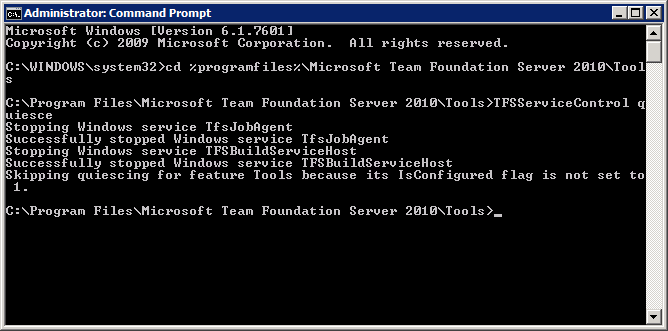
- Use TFSServiceControl quiesce to stop all the agents
- Stop relevant network services:
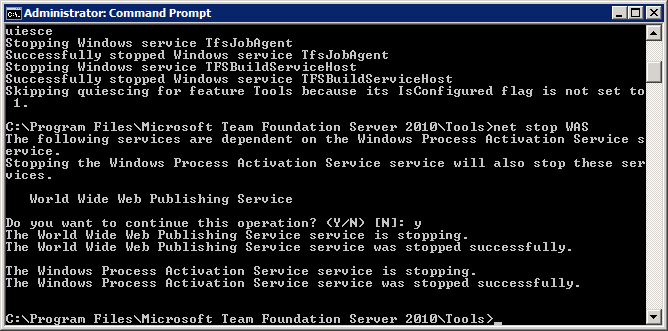
- Use TFSServiceControl quiesce to stop all the agents
- Just to be safe, I also stopped the TFS Application Pools in IIS
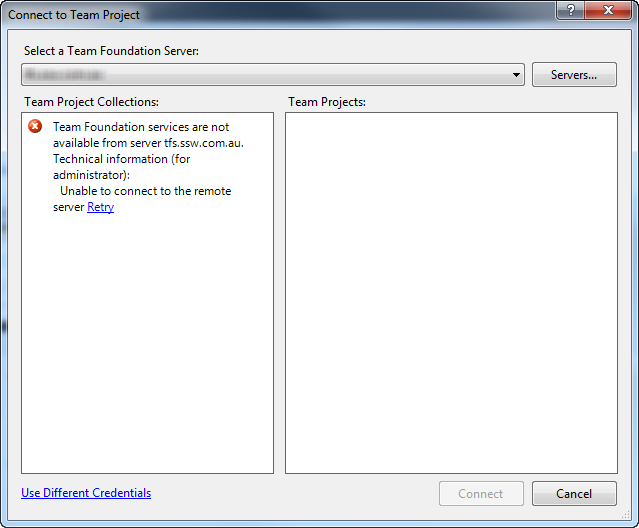
- Verify that you can’t connect to the TFS server by trying to connect in Visual Studio
- At this stage, it's a good idea to run the awesome DogFood Stats queries from Grant Holliday to get some statistics on your current projects. Make sure you document these for comparison later.
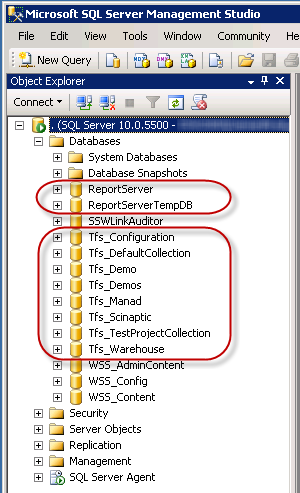
- Backup the TFS and Reporting Server databases.
We had quite a few relevant databases because there were a few project collections.
- Back up the Reporting Services Encryption Keys. We'll need to use these later to configure our new Reporting Services against the restored databases. To back up the encryption key, follow the steps on the MSDN page. Note: Make sure you remember the password you use to protect it with – you’ll need it later!
- Configure SQL Server Analysis Services to recover on failure.
On your new TFS Server box:
- Go to Start | Administrative Tools | Services
- Right-click SQL Server Analysis Services and choose Properties
- Go to the Recovery tab and choose “Restart the Service” for each of the failures.
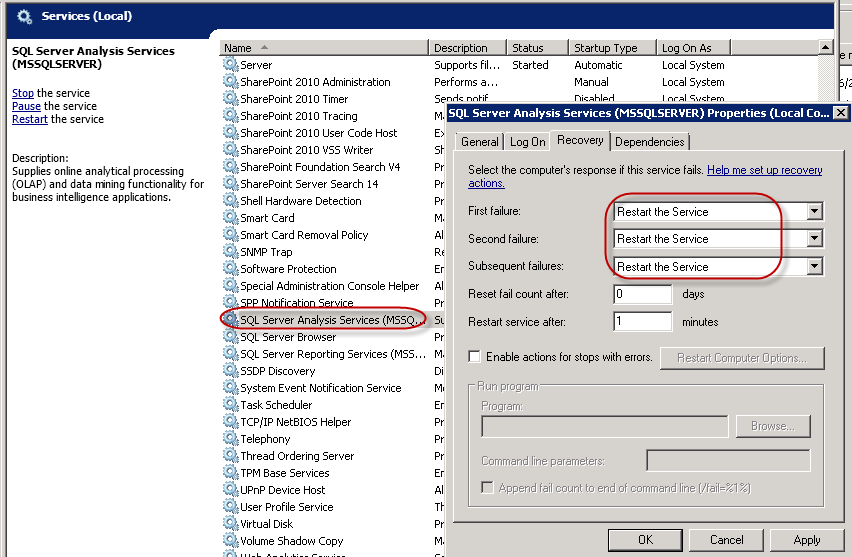
- Move all my database backups to the new SQL Server 2012 instance. This was as simple as copying each of the database backups to the new SQL 2012 server.
Installing and upgrading TFS 2012
- Because we're installing from an ISO rather than a physical CD, we mount the ISO using SlySoft's Virtual CloneDrive (or your favourite alternative).
- Run tfs_server.exe from the installation disk or ISO.
- Accept the license terms and click Install Now (because this is an admin operation, you may be given a UAC prompt – obviously, you can accept this)
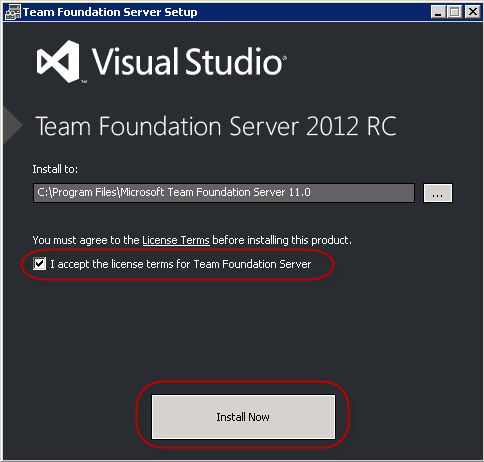
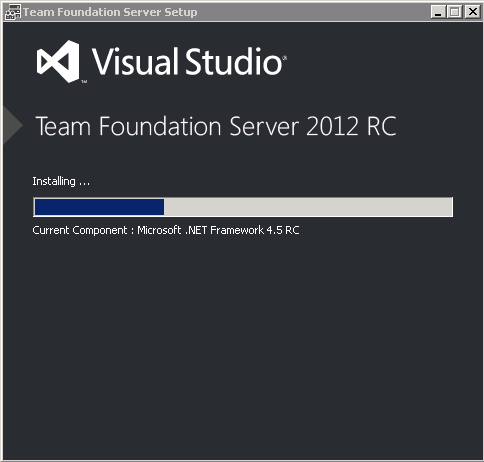
- Watch the progress with excitement and trepidation (and coffee)
 You may get a message asking you to reboot the machine. If it does appear… restart the machine.
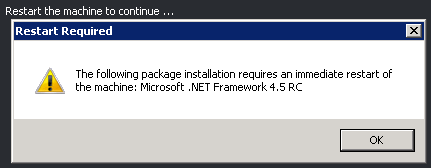 This made me a little nervous because we were using a virtual machine and a mounted ISO, but everything came back up perfectly and continued from where it left off.
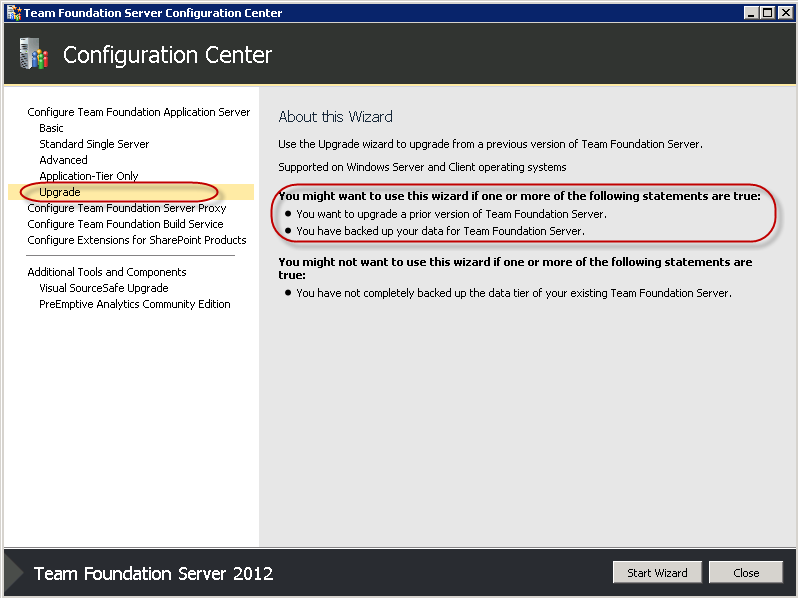
 - After installing, the Configuration Center will be shown.
We want to Upgrade from an existing server
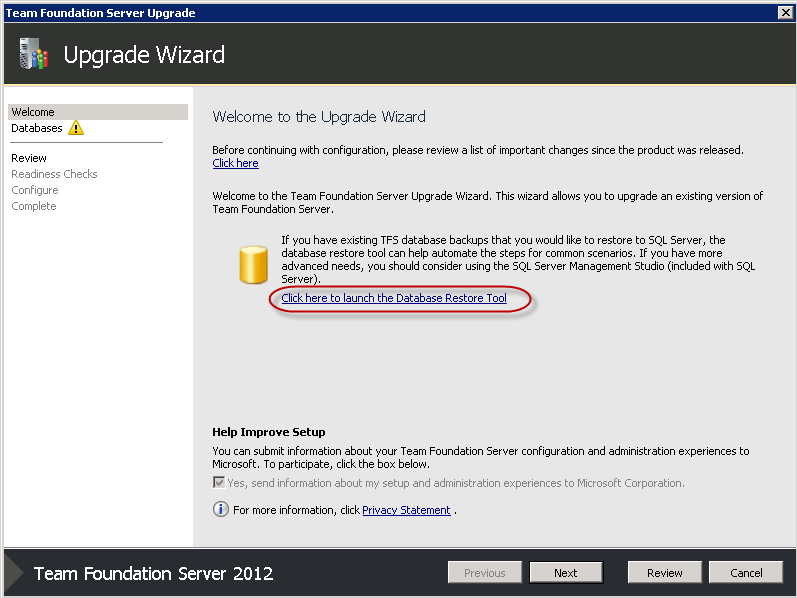
- We need to restore our TFS databases, so we’ll use the Database Restore Tool presented on the next screen.
- Because we’re not using a local database, we’ll change the target server instance so we can connect to our SQL 2012 server.

- In the Restore SQL Database screen, choose the folder where you saved your backups. Note that this will be on your SQL Server if that’s where you put them.
The tool will find all TFS databases automatically.
Note: In our case, we want to restore our Reporting Server databases too, so make sure they’re ticked.
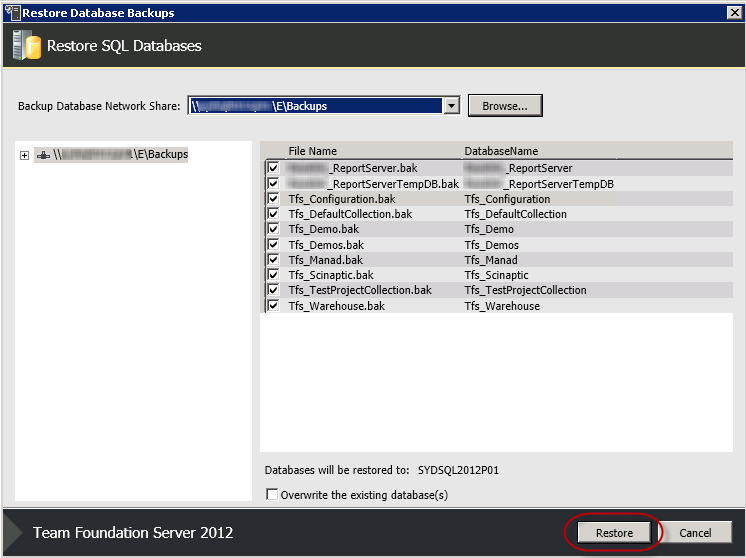 Ensure this is correct, then click Restore. The tool will restore each of the databases in turn. When finished, click Close.
 - The next step asks you to specify a configuration database to upgrade.
First, we choose our SQL Server 2012 instance, then click List Available Databases
The tool should find our Tfs_Configuration database automatically.
We’ll confirm we have a backup, then click Next.

- We’re next asked for the service account for our Application Tier Network Service is fine for this, so just click Next.
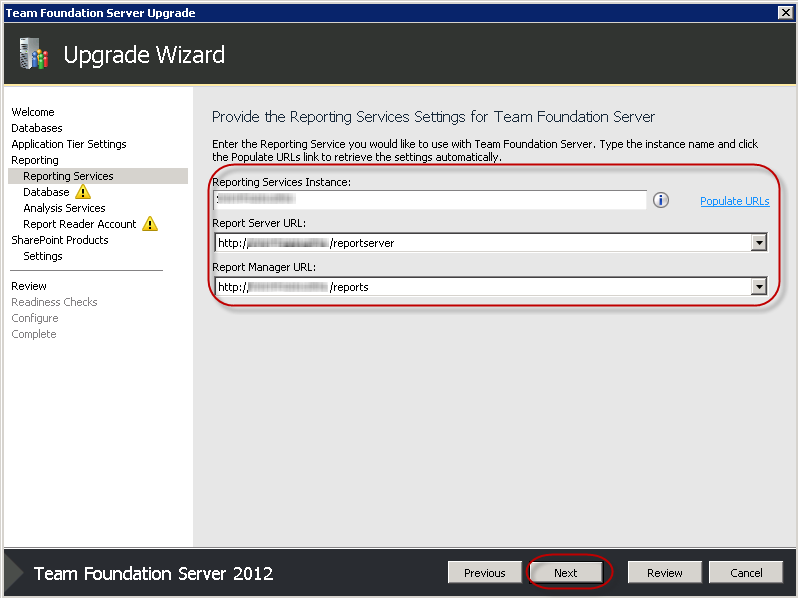
- Next up, we’re asked if we want to configure reporting services. Make sure the checkbox is checked, then click Next.
- Make sure the instance and the URLs are correct, and click Next.
We have a local instance and we kept all the default URLs, so there was nothing to change.
- Next up is the TFS Warehouse database
Because our SQL Server is in a different location, we had to change the instance. To find the correct database, I tested the connection then listed all available databases. After that, the wizard found the Tfs_Warehouse database automatically. If everything is correct, click Next.
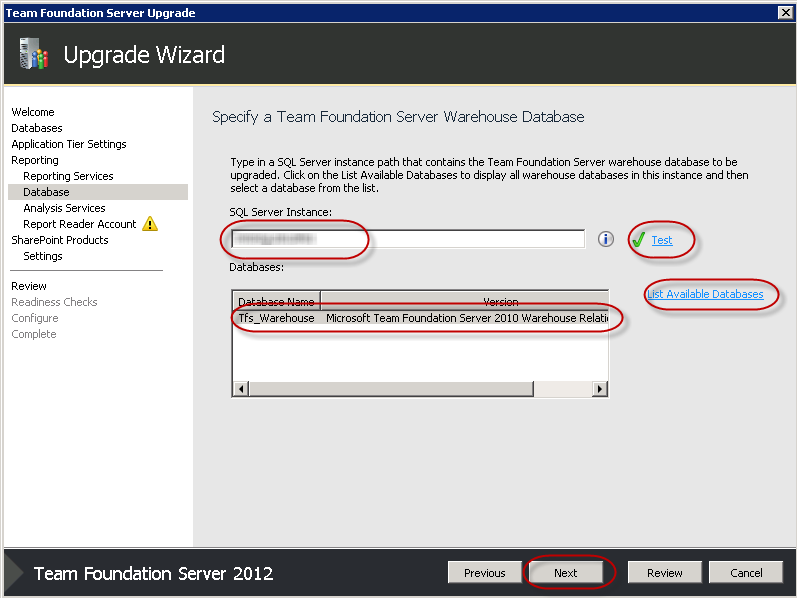
- The Analysis Services are set up on the local TFS machine as well, so nothing needs to change on this screen. It’s a good idea to test using the Test link, however. If all is well, click Next.
- Next, we’re asked to provide an account that the Reports will run as. We have a TFSSERVICE account for this specific purpose, so I supplied the credentials and tested successfully, then clicked Next.
- Next we're asked if we want to configure SharePoint for TFS, we do, so we’ll make sure the checkbox is checked and click Next
- We want to use our existing SharePoint (installed with TFS), so we’ll leave the default settings and click Next.
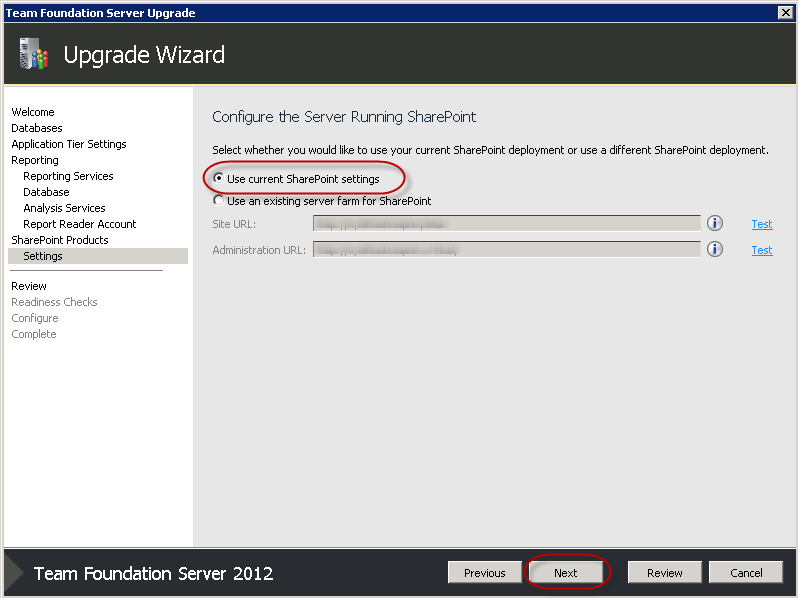
- On the next screen, we get a summary of all the options we’ve chosen.
Go through them carefully to make sure everything is as expected, and click Verify to check.
 Note: At this point I got a System Verification error at this point telling me I'd need to reboot before continuing.
After rebooting... I had to start the wizard again!
My initial thoughts were:
Note: At this point I got a System Verification error at this point telling me I'd need to reboot before continuing.
After rebooting... I had to start the wizard again!
My initial thoughts were:
 But I persisted.
I had to reboot twice to get past this error, but after that it all went smoothly.
But I persisted.
I had to reboot twice to get past this error, but after that it all went smoothly. - Now we’ve got all green ticks, we can click Configure.
 Configuration will take a little while, but when it's finished, make sure you get all green ticks then click Next.
 - Now each of the Project Collections will be updated. This includes a lot of stuff, so it may take some time.
Grab a coffee. Maybe go for a jog.
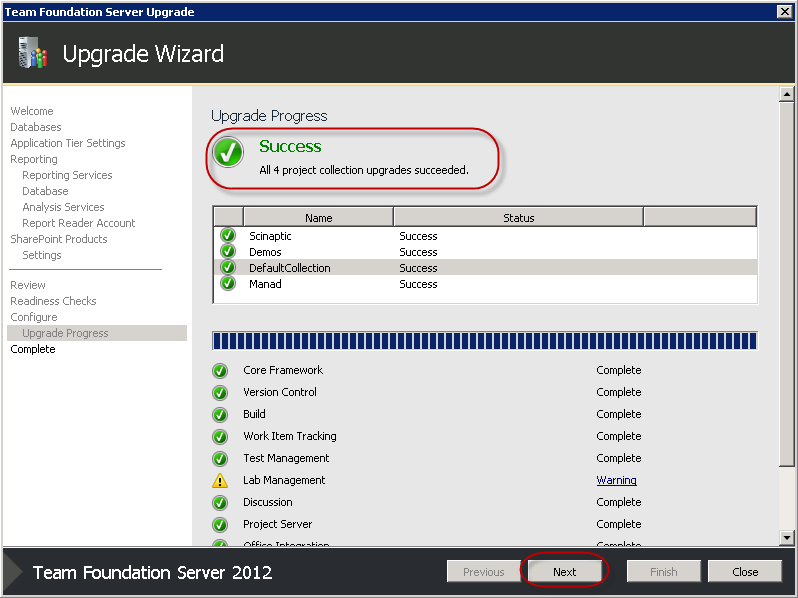 Once you get a big green tick, click Next.
Note: The Lab management warning told us it couldn’t tear down any labs. As we didn’t have any set up, this wasn’t an issue.
Once you get a big green tick, click Next.
Note: The Lab management warning told us it couldn’t tear down any labs. As we didn’t have any set up, this wasn’t an issue. - At this point, you should run Grant Holliday's DogFoodStats scripts over the new databases to make sure there are no unexpected numbers. Don't be concerned if the numbers aren't identical; what you're looking for is big discrepancies (for example zero checkins). All of our stats were either identical to the previous value, or were extremely close.

Configuring Reporting Services
- Finally, let's configure our Reporting Services to work with our restored Reporting Server databases. On the TFS server, Go to Start | All Programs | Microsoft SQL Server 2012 | Configuration Tools | Reporting Services Configuration Manager
- We’ll change the Server Name to our SQL 2012 instance, click Find, then Connect
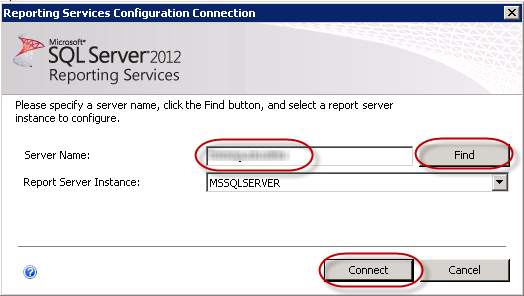
- Navigate to Database on the left-hand menu, then choose Change Database
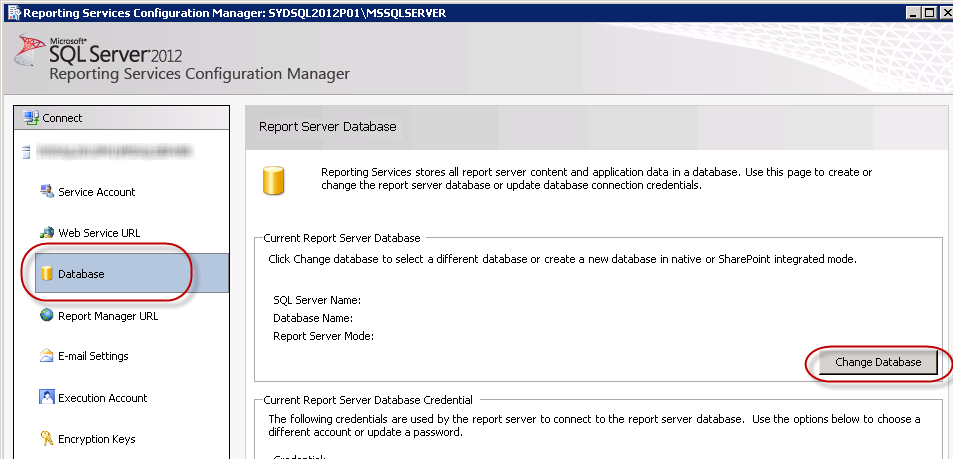
- Select “Choose an existing report server database” then click Next
- Make sure we’re pointing at the correct SQL Server instance, and that testing the connection succeeds, then click Next
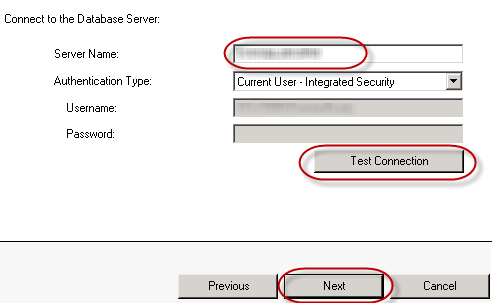
- Choose the Report Server database you restored in step 8, then click Next
- Leave the Credentials page with default settings, then click Next
- Review the information on the Summary page, then click Next When done, click Finish to complete the process
- Now we'll restore our saved encryption key.
Navigate to the Encryption Keys section, and choose Restore
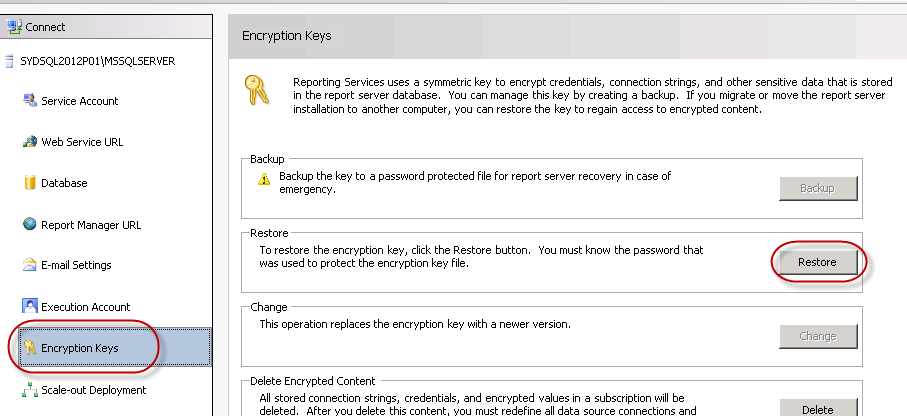
- Locate the encryption key you backed up earlier, enter the password, then click OK.
Make sure you get a green tick in the Results section
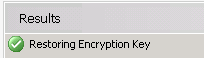
- Click on the Web Service URL section and Apply the default settings
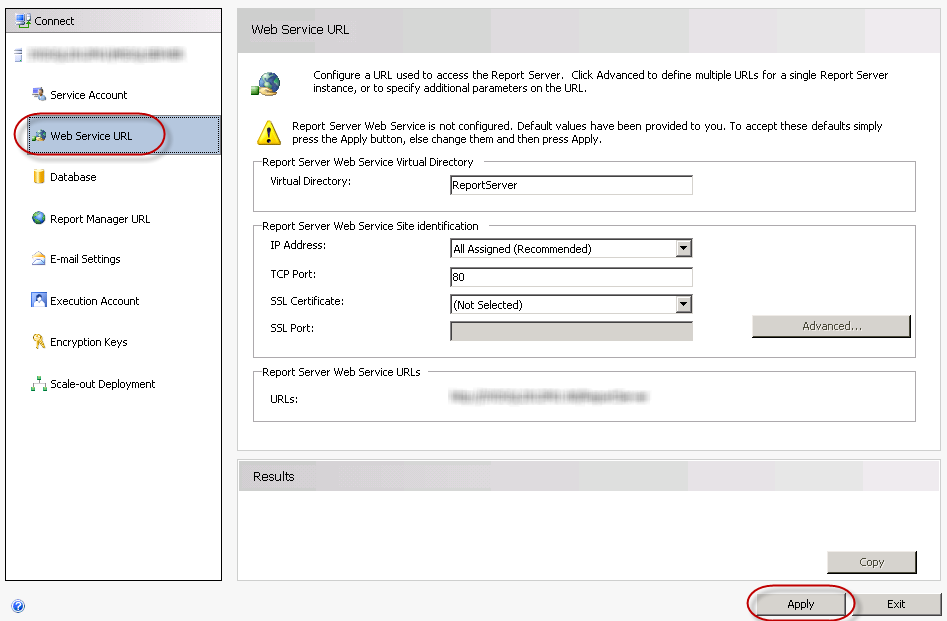 Make sure the Results section shows green ticks.
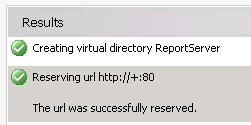 Note: If you’re unable to click Apply, you’ve probably already completed this step. Just skip this step.
 - Click on the Report Manager URL and Apply the default settings here as well. Again, check you get green ticks. Note: If you’re unable to click Apply, you’ve probably already completed this step. Just skip this step.
- Try out your new URLs by clicking on the hyperlinks in the Web Service URL and Report Manager URL sections. If all is well, you can Exit from the Reporting Service Configuration Manager.Aside: I had an issue here where when I navigated to the ReportServer URL, I was given an error saying “The report server installation is not initialized”. My solution was:
- Navigate back to the Encryption Keys section, Delete all Encrypted content, then restore the Encryption key again.
- Navigate to the Web Service URL, make a change to the URL (and change it back), then reapply the settings.
- Do the same to the Report Manager URL.
Final Steps
A couple more steps were required before we were up and running. I worked with our trusty SysAdmin Daniel Hyles to get these items sorted out.- Make a DNS change so tfs.ssw.com.au now points to this server's IP address.

- Make changes to the firewall to allow traffic through to this server
- In our environment, we had TFS listening on a few different ports (including 443 for SSL). This meant a bit more configuration in IIS, and some installation of certificates.
Testing
After the final steps were completed, testing went as smoothly as you could imagine. Visual Studio accepted the new server without a hitch, and all our test developers could Get Latest and Check In without an issue.To Do
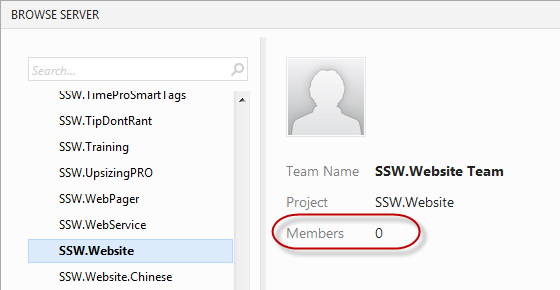
There are a few loose ends that we hope to clear up over the next few days.- In TFS Web Access, it appears that there are no members for any of the projects. Obviously this isn't causing an issue, and permission to access the Projects and Project Collections must have come across with the data migration (we made sure it wasn't a free-for-all), but it seems a bit unusual.
- We still need to finish setting up the SharePoint instance that will store all our project documents.
- Our Build Servers have not yet been upgraded. This should be a fairly quick task, however until it's done, none of our builds will work. In particular, this affects our gated checkins. Because they make sure the project can be built before a checkin is accepted, they're stopping us from checking in! We've turned these off for the moment.
Summary
The upgrade process was fairly straightforward, however there are a few suggestions I'll give you.
If you're doing it, I highly recommend you have a trusty SysAdmin involved for the final few steps. A person like Daniel comes into his own on these occasions and knows exactly what changes to make and how to make them efficiently. You don't want a programmer doing that work if you can help it.
One thing we noted was that the URLs that were used to access the old TFS server were carried over in the configuration during the upgrade. While this was fine for us as we were changing DNS entries to keep everything consistent, I can imagine a common final step would be to change these URLs. It would have been nice for the wizard to prompt us for settings like that.
The feedback has been given to Brian Harry's TFS team so they can add some spit and polish for the RTM version.